Posts

Showing posts with the label GIS 5103

Terrain Visualization

Image
  To use the effect to your DEM data for hill shade the hill shade tool can be applied on top rather than creating a new layer. This can save storage space, especially if either the map extent or DEM dataset is large. The multidirectional hill shade option simulates diffuse illumination by combining light from sources in multiple directions. This is more dramatic than a traditional hill shade that shows light from a single light source in the northwest. The multidirectional hill shade reveals more variation in the terrain, thus allowing me to find unique landform features.  

Module 4: Explore and Manipulate Data

Image
 This week, we learned how to direct Python script to utilize the Describe function, Listing the Dataset, and different types of Cursors to Search, Insert, and Update Data to view GIS shapefile's attribute tables.  The Describe function operates to access certain GIS data such as a Shapefile. After we provide access to the Dataset location you can use my.layer = "_shp" and use key terms like mylayer.catalogPath or my.layerbasefile to look at the shapefile's properties. Listing in Python is very useful if you want to have a result of the different feature classes, rasters, tables, and their fields. We were able to create a list that contains a feature data shapfile's for the Name and their Data Type.  Finally, using Cursors just like viewing an attribute table in GIS, goes through the Attribute's rows and iterates the data. Using cursors can search within the attribute data, insert new attribute data in the attribute table, and update attributes (delete) in the...

Module 3: Geoprocessing

Image
  This week, we covered three geoprocessing tasks including buffer, dissolve and add XY coordinates GIS data using two applications in ArcPro Python Window and ModeBuilder.   It was a challenge adjusting to using python language to work with GIS processes. Being more familiar with the GIS aspect of geoprocessing buffers, dissolves, and adding XY coordinates, I was able to check some of my work and view how the current running of GIS functions in a separate map project and using Spyder.  Another error that kept showing up was that another file was already created so then the program would not run. It was an adjustment to notice these disparities. Additionally, closing the ArcPro program to go to Spyder and check my work.  Learning note: close ArcPro before going to Spyder, especially if you are working on the same project.  The Python window in ArcPro is not like the Spyder application so the code is not saved like a script and so saving and making sure the ...

Module 2: Debugging and Error Handling

Image
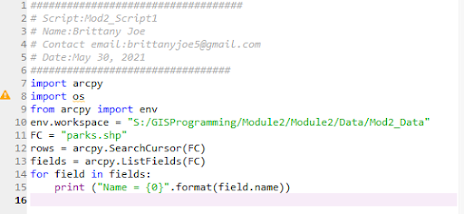
 This week we learned about the types of errors in scripting and how we can utilize the debugging tool in Spyder to fix those errors. Additionally, we learned about try-except statements that allow us to run a script with exceptions.  The first thing to note about errors in a script is the color separation that identifies errors in the console. Red is commonly used to identify errors. An example of what is identified as an error is a syntax error with a ^ position symbol ( this doesn't mean it is where the location of the error).  Script 1  To get the results for this script, we had to fix the FC that was misspelled. I also had to update the file path and recognizing the correct function was used and entered correctly.  Script 2 For the second script, we were tasked to correct the script's errors. By making changes into the file path to update and correct any spelling of the files. Additionally, correct small details of assigned features and were carried over in...

Fundamentals in Python

Image
  Flowchart Working with Spyder was a challenge. I had started on step 1 on a different approach than the lab instructions gave. My First Attempt started as follows stringName = “Brittany Anne Joe”  nameList – (“Brittany” “Anne” “Joe”)  print (“Joe”)  Although this gave the same results of printing my last name Joe in the program I learned to use some of Python’s functions that allows me to print my last name from a list. stringName.split automatically takes your stringName feature and divide it into separate cars for “Brittany” “Anne” “Joe”. To specify what to print from a list you need to index by specifying the number that represents your list. So “Brittany” would be 0, “Anne “would be 1, and “Joe” was 2.  After step 1, we had to debug a prewritten code that generates the results of random wins and losses for the players. I was challenged to create a loop to generate 20 random numbers between 0-10. My unlucky value was number 5 and we had to use an if/else st...